
Skip to content

Use case

AI for Ecommerce Product Photos to Ads

One phone photo of a product can become a clean packshot, a lifestyle scene, a model holding it, a new angle and a ready-to-post ad. FunAI puts the tools for each of those jobs in one studio, so a small shop can fill a listing without booking a shoot.

Start on the free Starter plan. Every model page lists its price per run.
AI for Ecommerce - FunAI
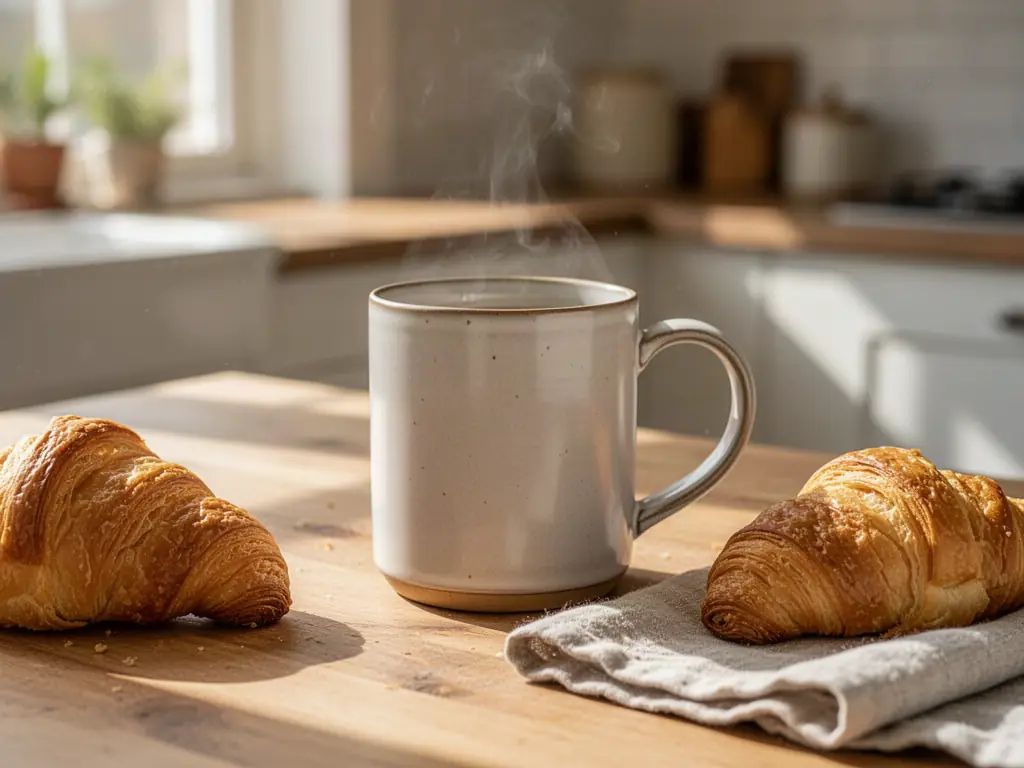
A ceramic mug in a sunlit kitchen scene, an AI product photo made on FunAI

One Product Photo, a Full Listing

Start from a clear photo of the real item and build the rest of the listing around it: a clean main image, scenes that sell the use, and ads that reuse the same visuals.

Open AI Product Photography

Clean main images

Cut the product out with the background remover, then place it on white or a plain studio set for the marketplace main image.

Lifestyle and in-hand shots

Put the same product on a kitchen counter, a desk or a bathroom shelf, or in a person's hand, so shoppers see scale and use.

Ads from the same assets

Feed the finished photos into the ad Tools for static creatives, or into AI Ad Maker for a short product video.

Tools for ecommerce

Each Tool does one listing job. Open one to upload your product photo; mockup pages explain packaging and apparel previews in more depth.

  • •
    Image Background Remover:Cuts the product out of its photo so it can go on white or into a new scene.
  • •
    AI Product Photography:Places your product in a studio set built around it.
  • •
    Product Holding:Generates a photo of a person or a hand holding your product, for scale and context.
  • •
    AI Mockup Generator:Puts a design on apparel, packaging or screens before anything is printed or made.
  • •
    Image Ad Studio:Turns a product image into a promotional image ad for your brand.
  • •
    Upscale:Raises resolution and detail so a small supplier photo holds up on a zoomable product page.
Browse all Tools
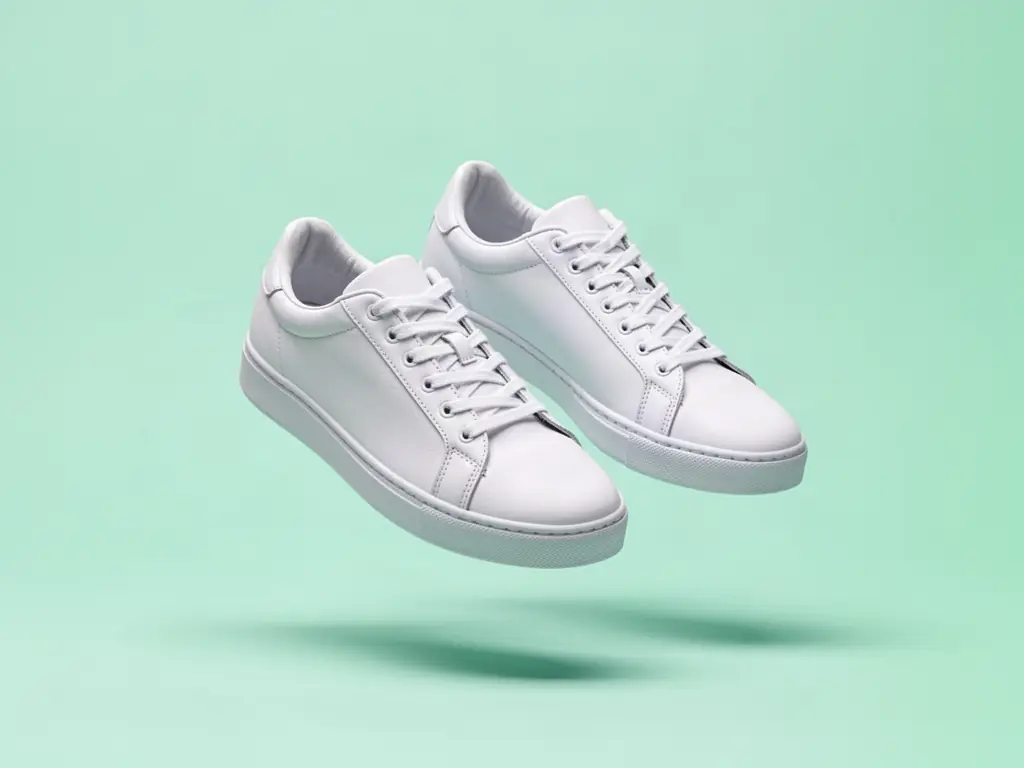
White sneakers on a mint background, an AI product shot made on FunAI

AI for Ecommerce explained

An online store needs far more images than a shop window: a white-background main image for the marketplace, lifestyle shots that show scale and use, close-ups, variants for every colour, banners for the homepage and a steady stream of ads. Each of those used to mean a photographer, a studio and a retoucher. Most of them can now start from one honest photo of the real product.

FunAI groups the work into Tools that each do one job. Image Background Remover cuts the product out. AI Product Photography and AI Product Image place it in a studio or lifestyle set. Product Holding puts it in a hand, Multiple Angles Image shows the same item from another camera position, and Image Resizer crops for each marketplace's aspect ratio. When the listing is done, Image Ad Studio and AI UGC Ads make static ads, and AI Ad Maker makes a short video ad from the same product.

Behind the Tools sit dedicated product models such as Bria Product Shot, Pixelcut Product Photo, Embed Product and Bria Product Dimensions, which adds size callouts to a product image, plus general editors like Nano Banana 2, GPT Image 2 and Seedream 5.0 Pro for fixes you describe in words. Always check that the result still shows your product as it really is: colour, shape, label and size should match what the customer receives.

Why online stores use AI for product images

  • Lifestyle and in-hand scenes without hiring a set or a model
  • Every colour variant and angle from one consistent source photo
  • Marketplace-ready crops and sizes from the same image
  • Static and video ads made from the photos you already have
  • Dedicated product models plus general editors for fixes in plain words
  • Uploads and outputs are not sold or used to train models without consent

A product listing in four steps

Feature visual preview 1
Feature visual preview 2
Feature visual preview 3
Feature visual preview 4
01

Photograph the real product

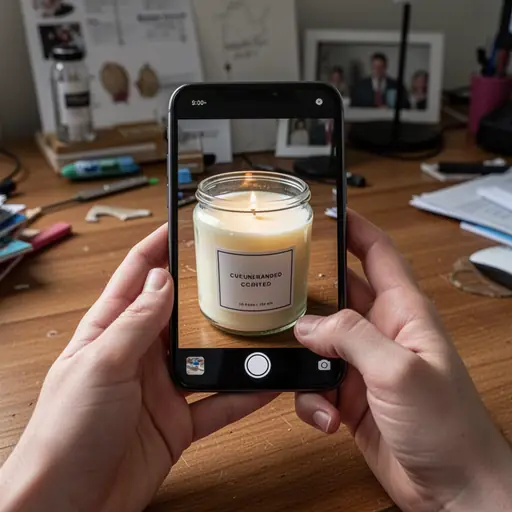
Shoot it in daylight against a plain wall or sheet, filling the frame. A sharp, evenly lit source photo gives every later step a better start.

02

Cut it out and clean it up

Run Image Background Remover, then use Object Removal or Text Remover for dust, stray props or old price stickers. Upscale if the photo is small.

03

Build the scenes

Use AI Product Photography for studio sets, Product Holding for in-hand shots and Multiple Angles Image for a second view. Check each result against the real item.

04

Size it and turn it into ads

Crop each image for its marketplace with Image Resizer, then make static ads in Image Ad Studio or a short video ad in AI Ad Maker.

No public creations to show yet.

Everything you need to know